 Two-Person Hotel Lobby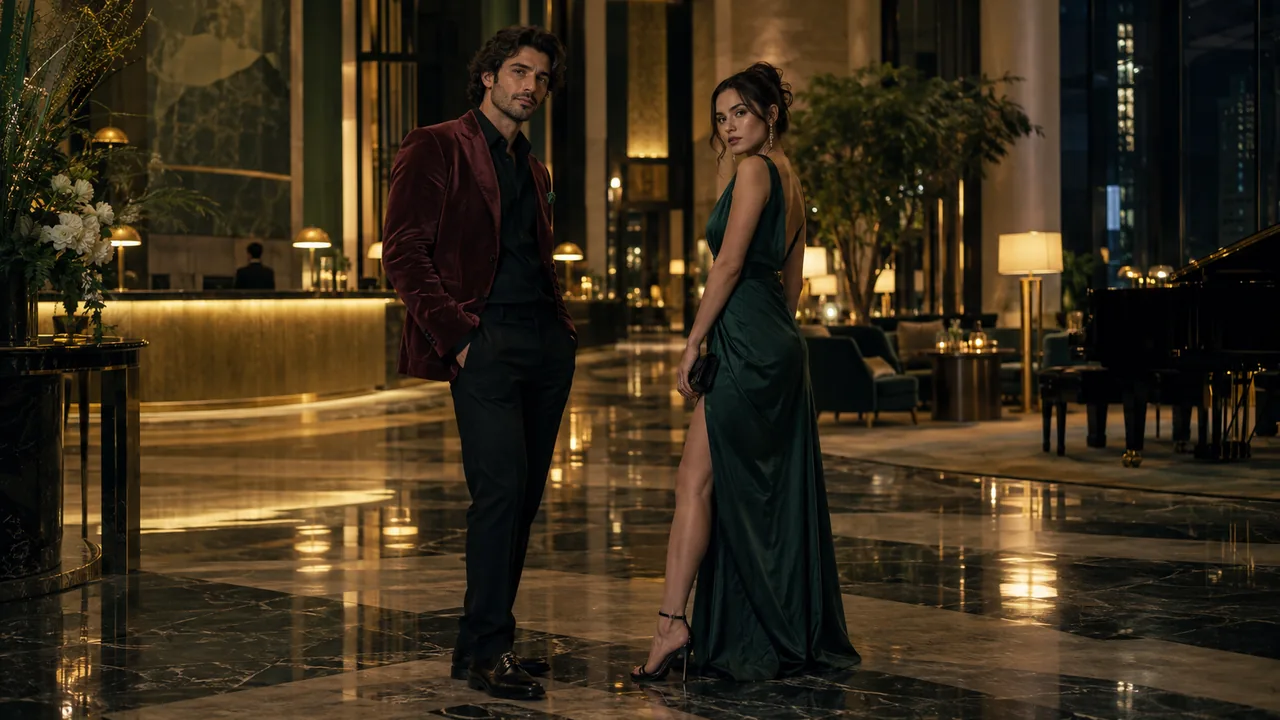
Choose a reference for this scene
Two portraits become a rap duo: one performer delivers a line while the other answers with head nods, shoulder bounce and hype gestures. An orange studio backdrop and hanging microphone give the Hotel Lobby effect its recognizable performance setting. The exchange between the two people carries the clip.
One portrait for each performer
Upload two individual portraits, one in each performer slot. Keep each face near the middle of its own photo, with clear eyes and enough upper-body detail.
Similar face size
Use portraits with comparable face size and camera distance. Avoid giving one performer a sharp close-up and the other a tiny face in a distant shot.
Visible shoulders and clothing
Leave the upper body in frame so the video has a reference for the shared medium shot. A severe chin-level crop removes useful posture and wardrobe information.
Light that describes the faces
Use evenly lit portraits with clear eyes, mouth and shoulders. The reference can have an ordinary background; the generator builds the performance setting.
Photos to avoid
- A collage made from two separate portraits.
- Sunglasses, hands or hair covering a large part of either face.
- A very wide group photo with additional people close to the pair.
From source portraits to a reviewed clip
Prepare two permitted portraits
Use one person in each of two separate portraits. Obtain permission from every identifiable person to appear in a synthetic video. Choose a JPG, PNG or WebP up to 4 MB for each portrait, and inspect facial detail before upload.
Check the local preview
Choose each required file in its own studio slot. Selection creates local previews; it does not submit the images to storage or the video provider. Replace or remove a portrait if its subject, crop or file is wrong.
Choose the frame
Use 9:16 or 3:4 for portrait video, 1:1 for a square post, or 16:9, 4:3 or 21:9 for a wider scene. Changing the aspect ratio does not change the credit cost for the same duration.
Choose your video length
This scene defaults to 10 seconds in 9:16. Your account stores credits; package cards show the video time they cover. A 15-second clip uses more credits than a 10-second clip. Unused credits stay in your balance, and you need enough for at least 10 seconds to start a new video.
Confirm permission, then generate
Use Generate only when the live service is available. The flow connects your account or guest session, uploads the required portraits in slot order and sends the scene request. Complete verification if it is required.
Recover the same task when uncertain
If the response is slow or unclear, use Check progress for the saved task instead of repeatedly starting new requests. Return with the same browser session when possible. An unknown response does not establish that the job failed.
Play the whole result
When the task completes, play the full video and inspect the performance checks below. Save the result while its link is available. Starting another video uses additional credits.
What to check in the completed video
Check each face separately
Pause during both portrait moments. Inspect eyes, mouth shape and whether the identities remain distinct.
Watch the transition
A face that looks right in the opening frame can change when the camera comes closer. Review the entire move, not only a still thumbnail.
Check the floor and clothing
Look for warped reflections, merged limbs and wardrobe changes that become more visible in a paired shot.
When the result misses the intention
One person gets less attention
For a new intentional render, start from two portraits with equally clear faces and comparable subject size. The current studio uses a fixed recipe, so the example prompts are not editing controls.
The faces soften in close-up
Replace a compressed or blurry source with the clearest original image you have. Avoid enlarging a small social-media screenshot and expecting it to add facial detail.
Hands overlap the face
Choose a source with relaxed arms and unobstructed facial features. Review hands in the completed video before sharing.
Questions before you start
Can I upload two separate portraits?
Yes. Upload one clear individual portrait in each performer slot. The two photos are separate identity references; you do not need to build a shared image or collage.
Does choosing a file upload it immediately?
No. File selection creates a local preview. A live Generate request uploads the source to configured storage and sends its reference to the video service after permission confirmation.
Should I generate again if the request looks stuck?
Check the saved task first. A slow or uncertain response can still belong to an active job. Starting another video uses additional credits.
MAKE YOUR RAP VIDEO